

自定义占位符
自定义占位符专为源文本包含一些不太常见的占位符而设计,这些占位符默认情况下不会在源字符串(编辑器中)中突出显示。
您可以在组织设置中管理自定义占位符。
- 单击右上角的个人资料照片,然后选择 组织设置。
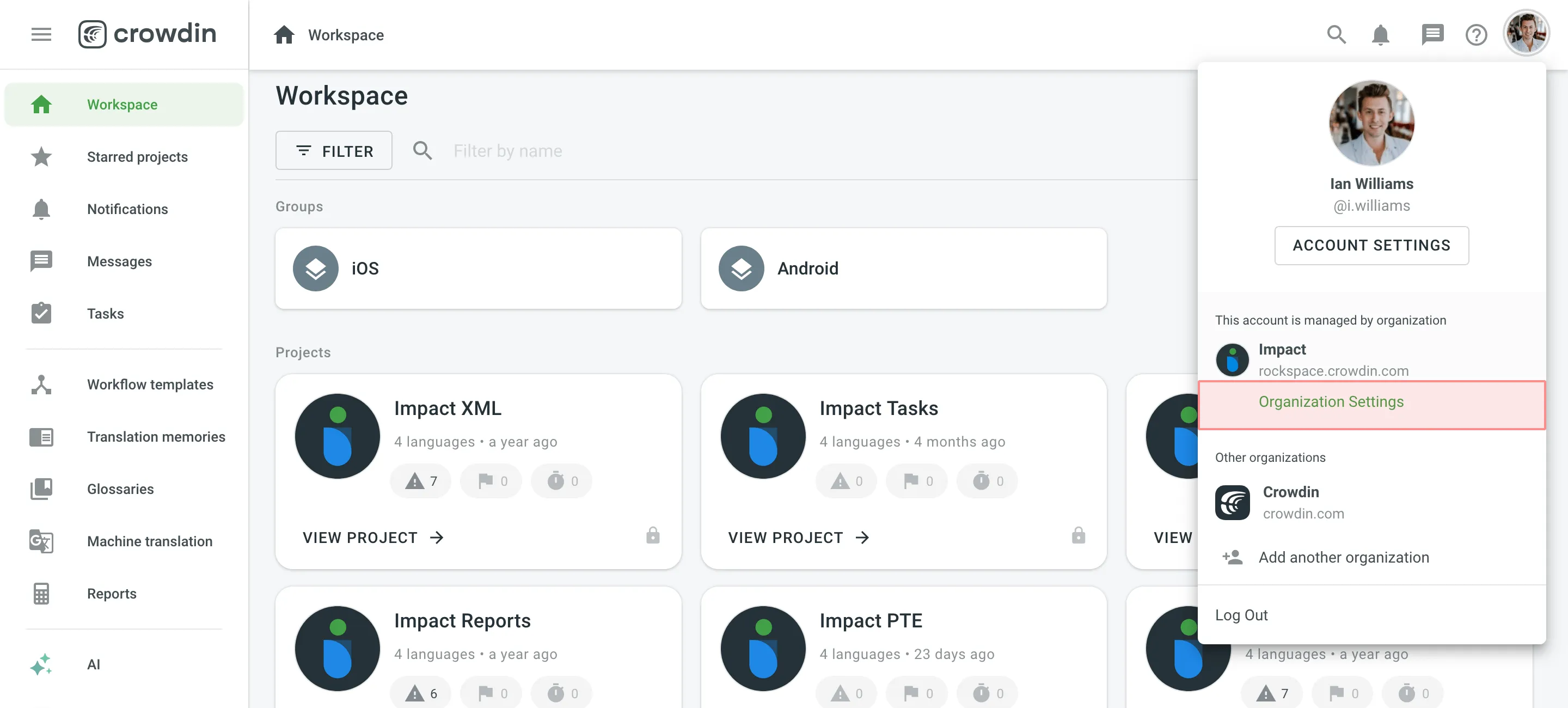
- 切换到左侧边栏的自定义占位符部分,然后单击添加占位符。
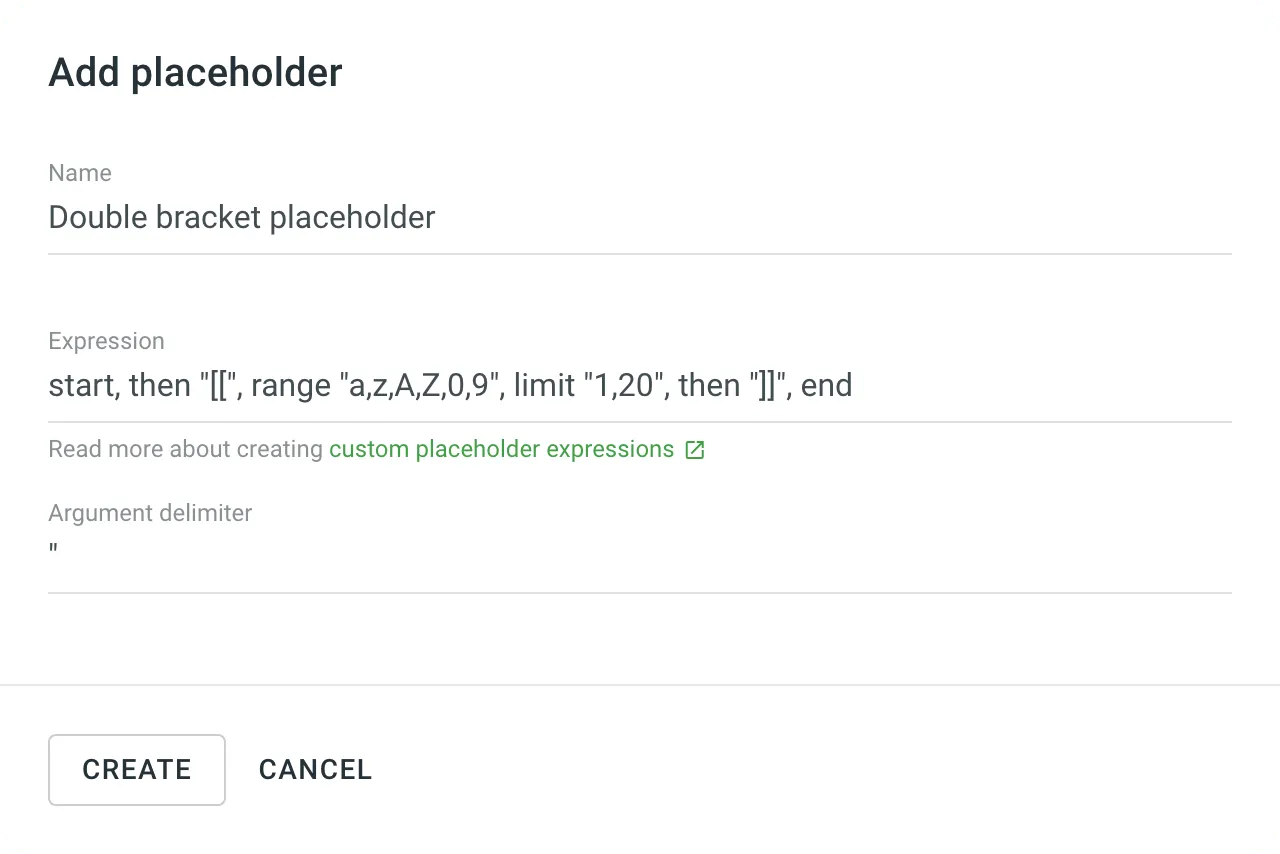
- 在出现的对话框中,使用表达式语法元素指定自定义占位符表达式,然后单击创建。
将自定义占位符分配给项目后,项目成员将在翻译过程中看到它们在编辑器中突出显示。
要配置自定义占位符表达式,您可以使用表达式语法表中的元素。
例如,如果您想高亮显示此 [[Placeholder1]],您的表达式可能如下所示:
start, then "[[", range "a,z,A,Z,0,9", limit "1,20", then "]]", end为了简化一些内容,让我们拆解上面的表达式。
start– 表示表达式的开始。then "[["– 表示您的自定义占位符以两个开方括号开始。range "a,z,A,Z,0,9"– 表示您的自定义占位符可能包含 a-z 和/或 A-Z 和/或 0-9 范围内的字符。limit "1,20"– 表示占位符的长度为 1 到 20 个字符。then "]]"– 表示您的自定义占位符以两个关方括号结束。end– 表示表达式的结束。
Verbal Tester 使用 Verbal Tester 应用程序在 Crowdin 项目中创建、检查和编辑口头表达式
试用口头表达式 GPT 协助在 Crowdin 中开发口头表达式。
下面您可以看到自定义占位符表达式的一些示例以及它们如何在编辑器的源字符串中突出显示。
字符串示例:
A test string with a custom %{placeholder}%表达式:
start, maybe "(", then "%", then "{", anything, then "}", maybe ")", then "%", end该表达式的解析:
maybe "("– 允许占位符可选地以(开头。then "%"– 要求一个%字符。then "{"– 要求一个{字符。anything– 匹配占位符内的任意字符或字符序列。then "}"– 要求一个}字符。maybe ")"– 允许占位符可选地以)结尾。then "%"– 要求一个%字符。
字符串示例:
A test string with a custom [[placeholder]]表达式:
start, then "[[", anythingbut "[[", then "]]", multiple, end该表达式的解析:
then "[["– 要求占位符以[[开头。anythingbut "[["– 匹配除开头[[括号以外的任意字符。then "]]"– 要求占位符以]]结尾。multiple– 允许模式(括号内的内容)重复出现。
字符串示例:
A test string with a custom placeholder表达式:
start, then "placeholder", end字符串示例:
A test string with a custom §placeholder§表达式:
start, then "§", anything, then "§", end字符串示例:
A test string with a Long sentence that you might want to highlight as a single custom placeholder表达式:
start, then "Long sentence that you might want to highlight as a single custom placeholder", end 感谢您的反馈!